


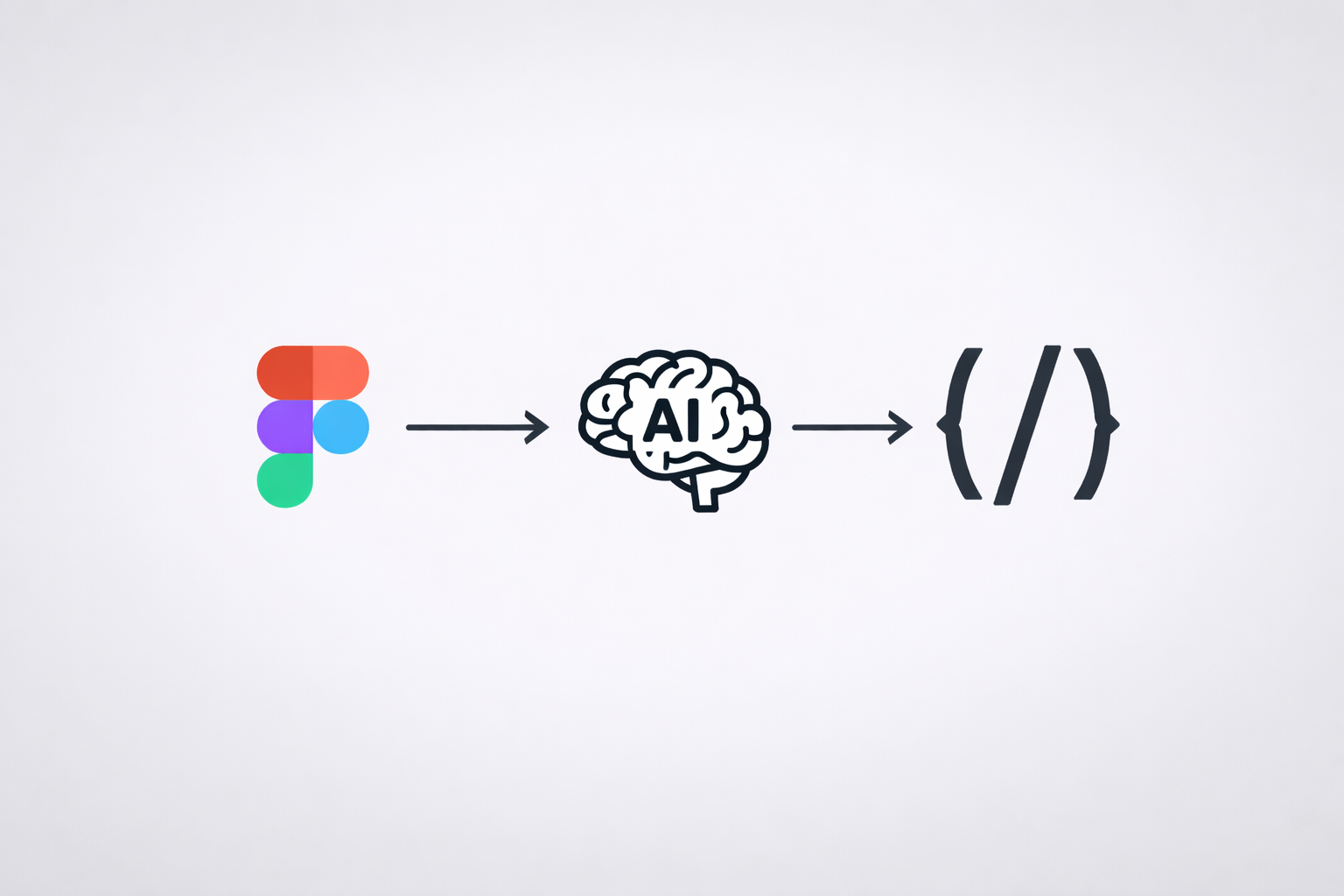
Modern frontend development used to be heavily manual. Before AI entered the workflow, converting UI/UX designs into working code meant carefully inspecting Figma files, creating components one by one, writing CSS or MUI styles manually, adjusting spacing, colors, typography, and repeatedly syncing with designers to fix mismatches. Even with component libraries like MUI, a significant amount of time was spent translating visual designs into code and fine-tuning styles to match the design system.
Today, frontend development is no longer just about manually writing components and styles. With the rise of Agentic AI, MCP servers, and Large Language Models (LLMs), we now have a practical way to convert UI/UX designs into real, styled, production-ready code directly inside our codebase.
In this post, I’ll explain:
- What MCP servers, AI agents, and LLMs are
- How Figma MCP works for UI/UX code generation
- How Figma MCP Works with Code Connect and Dev Mode
- How to connect MCP servers locally and remotely using VS Code
- How agentic AI tools like GitHub Copilot or Cursor consume MCP data
- Why this approach saves significant development time compared to manual CSS/MUI styling
- The security considerations of local vs remote MCP servers
This article is based on my real experience using Figma MCP + VS Code + React TypeScript + GitHub Copilot.
What Is an MCP Server?
MCP (Model Context Protocol) is a standard that allows AI tools (like Copilot or Cursor) to communicate with external systems in a structured and secure way.
An MCP server acts as a bridge between:
- Your AI assistant (agent)
- External tools or data sources (e.g., Figma, databases, APIs, file systems)
Instead of copying data manually, the AI can query structured context directly from these tools.
In simple terms: MCP servers give AI “live access” to tools instead of static prompts.
What Are AI Agents and LLMs?
LLM (Large Language Model)
A Large Language Model (LLM) is the core intelligence behind modern AI tools. It understands and generates text and code based on patterns learned from large datasets.
Examples of LLMs include:
- GPT-4 / GPT-4o / GPT-5 - used by ChatGPT and GitHub Copilot
- Claude - used in tools like Cursor
- Gemini - Google’s LLM
- LLaMA - open-source models often used in self-hosted setups
On their own, LLMs can:
- Generate React components
- Write TypeScript logic
- Explain code
- Refactor existing files
However, they don’t have direct access to your tools or live data by default.
AI Agent
An AI agent is an LLM enhanced with:
- Goals (what it should achieve)
- Tool access (via MCP servers)
- Action capabilities (reading designs, creating files, modifying code)
This allows the AI to move beyond suggestions and actually work within your development environment.
Examples of AI agents in real workflows:
- GitHub Copilot (with MCP enabled) - reads design data and generates code inside VS Code
- Cursor IDE - acts as a code-aware agent that can modify multiple files
- Custom internal agents - built using MCP to connect LLMs with design systems, APIs, or repositories
When you use GitHub Copilot or Cursor with MCP, you’re not just getting autocomplete - you’re working with an agentic AI that can:
- Read Figma designs via MCP
- Generate React + TypeScript components
- Apply styles consistently (CSS, MUI, tokens)
- Refactor and organize your codebase
Why MCP Matters for UI/UX Development
Traditionally, the UI handoff process looks like this:
- Open Figma
- Inspect components
- Copy spacing, colors, typography
- Create files manually
- Rewrite styles multiple times
This is:
- Time-consuming
- Error-prone
- Hard to keep consistent
With Figma MCP, the AI can:
- Read design tokens
- Understand layouts
- Generate React components
- Apply correct styles automatically
Introducing Figma MCP Server
Figma MCP allows AI agents to:
- Access Figma files
- Read frames, components, colors, typography
- Convert designs into structured data
That structured data is then used by tools like:
- GitHub Copilot
- Cursor IDE
to generate production-ready UI code.
How Figma MCP Works with Code Connect and Dev Mode
Figma MCP exposes two core capabilities that make accurate UI code generation possible: Code Connect and Dev Mode design data access. Together, they allow AI agents to understand both what to build and how to build it correctly.
1. Code Connect
Code Connect links Figma components directly to real components in your codebase.
What it does
- Maps Figma components → React components
- Understands component props such as
variant,size,disabled - Helps AI generate code that aligns with your existing design system
- Prevents one-off, throwaway UI code
Example
A Figma Button component is connected to your actual React <Button /> component (MUI or custom).
When the AI generates code, it reuses your real component instead of inventing a new one.
Why this matters for AI + MCP
- The AI knows which component to use
- Generated code follows your architecture and conventions
- Significantly less refactoring after generation
2. Dev Mode (Design Data / Inspect via MCP)
This is Figma’s Dev Mode design data, exposed programmatically through MCP.
What it provides
- Layout information (Flexbox, spacing, alignment)
- Colors, typography, border radius
- Variables and design tokens
- Responsive constraints
- Component hierarchy
This is the same information developers traditionally inspect manually in Figma, but now the AI can read it directly.
Why this matters for AI + MCP
- AI understands exact styles, not approximations
- Generates accurate CSS or MUI styles
- Matches spacing and typography without trial and error
Local vs Remote MCP Servers
Local MCP Server
- Runs on your machine
- Accesses local resources securely
- Best for sensitive projects
Pros
- Full control
- No external data exposure
- Faster iteration
Cons
- Needs local setup
Remote MCP Server
- Hosted externally
- Shared across teams
Pros
- Easy collaboration
- Centralized management
Cons
- Security and access control must be handled carefully
Connecting MCP Server in VS Code
VS Code supports MCP configuration through a JSON-based setup.
Example MCP Configuration
{
  "mcpServers": {
    "figma": {
      "command": "npx",
      "args": ["@figma/mcp-server"],
      "env": {
        "FIGMA_ACCESS_TOKEN": "your-figma-token"
      }
    }
  }
}
Once configured, you need to start the MCP server as defined in the configuration file.
After the server is running:
- VS Code detects the MCP server automatically
- The MCP server becomes available as a tool inside the editor
- GitHub Copilot or Cursor can query the MCP server automatically when responding to prompts
At this point, your AI assistant is no longer working in isolation, it can actively fetch design context (such as Figma layouts, components, and styles) through the MCP server and use that information to generate accurate, production-ready UI code.
Using Agentic AI to Generate UI Code
After connecting the Figma MCP server, the first step is to select a design context in Figma.
This usually means selecting a specific frame, screen, or component (for example, a page layout or a reusable UI component) that you want to convert into code.
This selected node becomes the context that the MCP server exposes to the AI.
Without explicitly selecting a context, the MCP server has no design reference, and the AI would fall back to assumptions instead of real design data.
Once the Figma context is selected, agentic AI tools like GitHub Copilot or Cursor can query the MCP server to understand:
- Layout structure
- Spacing and alignment
- Colors, typography, and design tokens
- Component hierarchy
- Code Connect mappings (if configured)
Only after this context is established do prompts like the following become effective:
“Generate React TypeScript components for the selected Figma screen using functional components and CSS modules.”
Or:
“Convert the selected Figma layout into a responsive React component using MUI.”
Or even:
“Create reusable components from this design and extract shared styles.”
What the Agent Does Behind the Scenes
With the Figma context selected and MCP enabled, the AI agent:
- Reads the selected Figma design via MCP
- Uses Dev Mode data to understand spacing, colors, fonts, and layout
- Applies Code Connect mappings to reuse existing React components
- Generates components directly into your codebase, following your project structure
This context-driven workflow is what enables accurate, production-ready UI code generation and removes the need for manually inspecting designs and recreating styles.
Why This Is Not Time-Consuming Anymore
Before MCP and agentic AI, building UI was a very manual process. Even with libraries like MUI, developers had to create folders, set up component files, write boilerplate code, and manually translate designs into CSS or style objects. After that, the UI usually needed multiple rounds of checking and adjustments to match spacing, colors, and typography from Figma.
With MCP + Agentic AI, this workflow changes completely.
Once the design context is selected in Figma, the AI can:
- Create component files automatically
- Apply styles based on real design tokens
- Reuse existing components through Code Connect
- Generate code that closely matches the design on the first pass
Instead of spending time on repetitive UI setup and styling, developers can focus on reviewing the generated code, improving structure, and making architectural decisions.
In short, the effort shifts from building everything manually to guiding and refining, resulting in faster delivery and much less rework.
Security Considerations
Security is an important factor when adopting MCP-based workflows, especially when working with design files and source code.
Local MCP Servers
When using a local MCP server, everything runs on your own machine.
- Access tokens are stored locally
- Design data is not sent to external services
- Full control over what the AI can access
Because of this, local MCP servers are ideal for enterprise projects, internal tools, or confidential designs where data exposure needs to be minimized.
Remote MCP Servers
A remote MCP server runs outside your local environment and is usually shared across a team.
To keep this secure, it’s important to:
- Use scoped tokens with limited permissions
- Apply role-based access so only authorized users can access designs
- Enable audit logs to track usage
- Ensure all communication happens over secure connections (HTTPS)
Remote MCP servers work well for team collaboration, but they require proper access control and monitoring.
Best Practices
A practical and balanced approach is:
- Use local MCP servers for sensitive or private projects
- Use remote MCP servers only when shared access and collaboration are required
This way, you get the benefits of MCP and agentic AI while maintaining strong control over security.
MCP servers combined with agentic AI tools like GitHub Copilot are fundamentally changing how we build UI.
Instead of treating AI as a simple helper or autocomplete tool, we now work with it as a collaborator that understands:
- Design systems and tokens
- Code structure and architecture
- Project and component conventions
By using Figma MCP + VS Code + React TypeScript + GitHub Copilot, UI development becomes faster, more consistent, and far less repetitive. Designs are no longer manually translated into code — they are understood, interpreted, and generated using real design context.
This approach reduces rework, improves alignment between design and development, and allows developers to focus more on architecture, quality, and scalability rather than repetitive UI setup.
References
If you’d like to explore the tools and concepts mentioned in this article further, here are some useful references:
- Introducing the Figma MCP Server
https://www.figma.com/blog/introducing-figma-mcp-server/ - Figma Code Connect Documentation
https://www.figma.com/developers/code-connect - Model Context Protocol (MCP)
https://modelcontextprotocol.io/